When a student completes a viva, Integrevise produces a draft report containing a session summary, rubric scores, and improvement suggestions. You can review the draft, edit anything that does not reflect your reading of the session, and release it when you are ready.
Opening a student's report
Select a student's name on the viva overview to open their most recent attempt. To review an earlier attempt, expand the row to see the full list for that student.
Each report has its own URL, so you can bookmark or share a specific one.
What the report contains
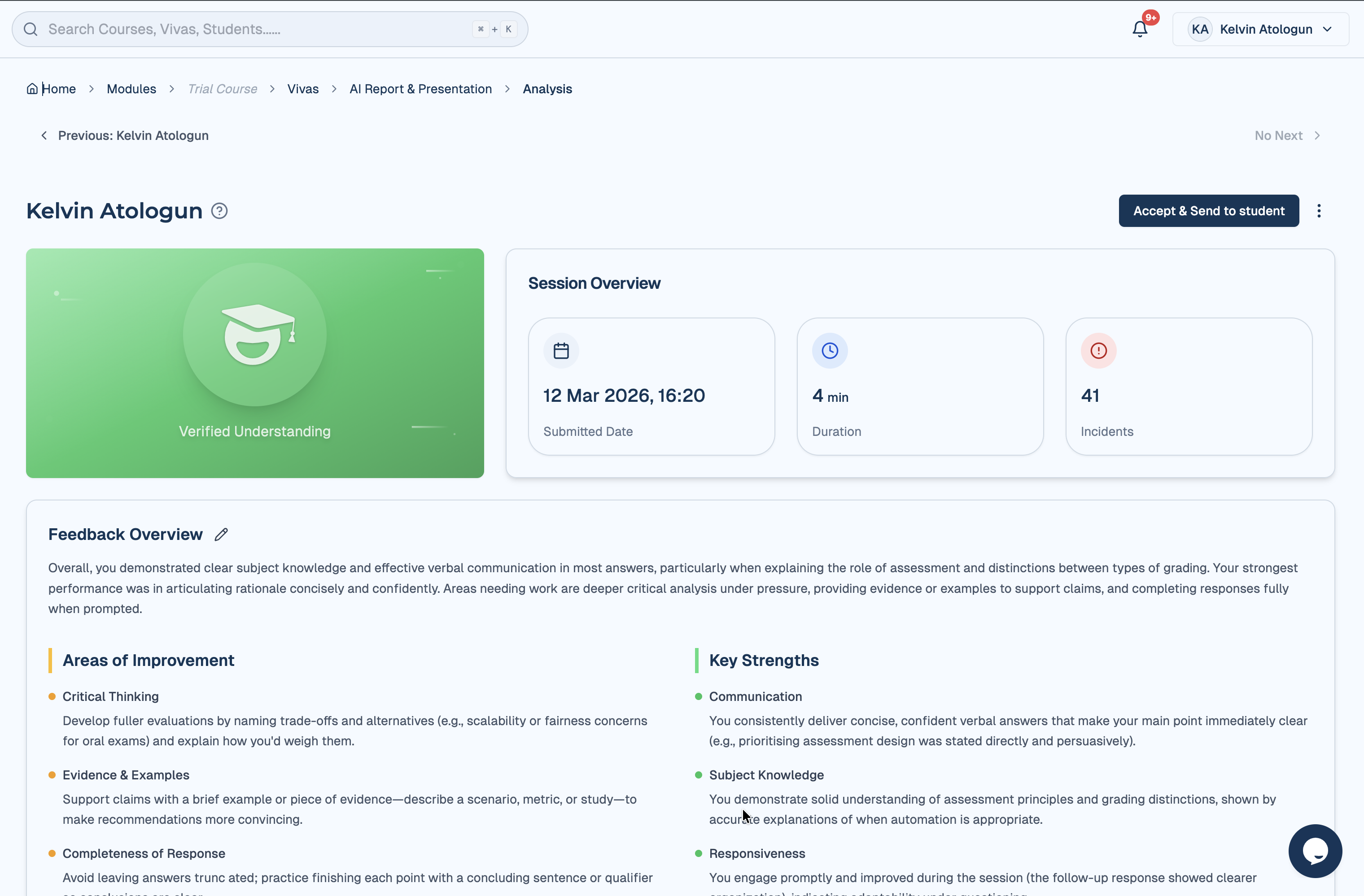
The report is laid out top to bottom:
- Traffic light and metrics. The performance traffic light for the attempt (Green, Amber, or Red) and the headline metrics: duration, questions answered, and topic coverage.
- Feedback overview. A draft summary of the attempt, alongside lists of Key Strengths, Areas for Improvement, and Actionable Suggestions. The summary is editable.
- Student answers. A question by question view of what was asked and how the student responded, with sub category scoring on each answer. Rows can be expanded for detail.
- Incident logs (when proctoring was enabled). Events flagged during this specific attempt. Same data as the cohort Incidents section, scoped to the attempt.
- Session Replay (when proctoring was enabled). Playback of the recorded session, with zoom controls. Load time scales with session length.
The traffic light, score analysis, transcript, incident logs, and session replay are visible to you as the lecturer; students see only the summary, the metrics, and the suggestions for further study when the report is released to them.
Editing the summary
The summary box is editable inline. Selecting the pencil icon next to the summary heading enters edit mode.
The edited summary is the version released to the student. Changes are saved on Enter or when the field loses focus; Escape discards the changes. The other lists (Key Strengths, Areas for Improvement, Actionable Suggestions) form part of the report but are not edited individually.
Transcript and Session Replay
The transcript and Session Replay are useful when an incident requires context, when the score and your reading of the answers diverge, or when a student disputes the outcome. Selecting an incident opens the replay at the relevant timestamp.
If proctoring was disabled for the viva, no recording or activity flagging takes place, so the Incident Logs and Session Replay sections show empty states.
Adding feedback beyond the summary
Integrevise does not include a separate text field for additional feedback to the student. Two options are available if a comment beyond the summary is appropriate:
- The summary can be edited to include a labelled note (for example, "Tutor note:").
- A direct message to the student through your usual channel.
Rating the report
A separate Rate this report option allows you to give the report itself a star rating, with an optional note. This feedback is used to improve the model and is not visible to the student.
After review
Releasing the report is described in Publishing Results. If the attempt should not be released — for example, after a technical failure — it can be left unreleased while another attempt is granted, or deleted from the student's record (see Managing Student Attempts).